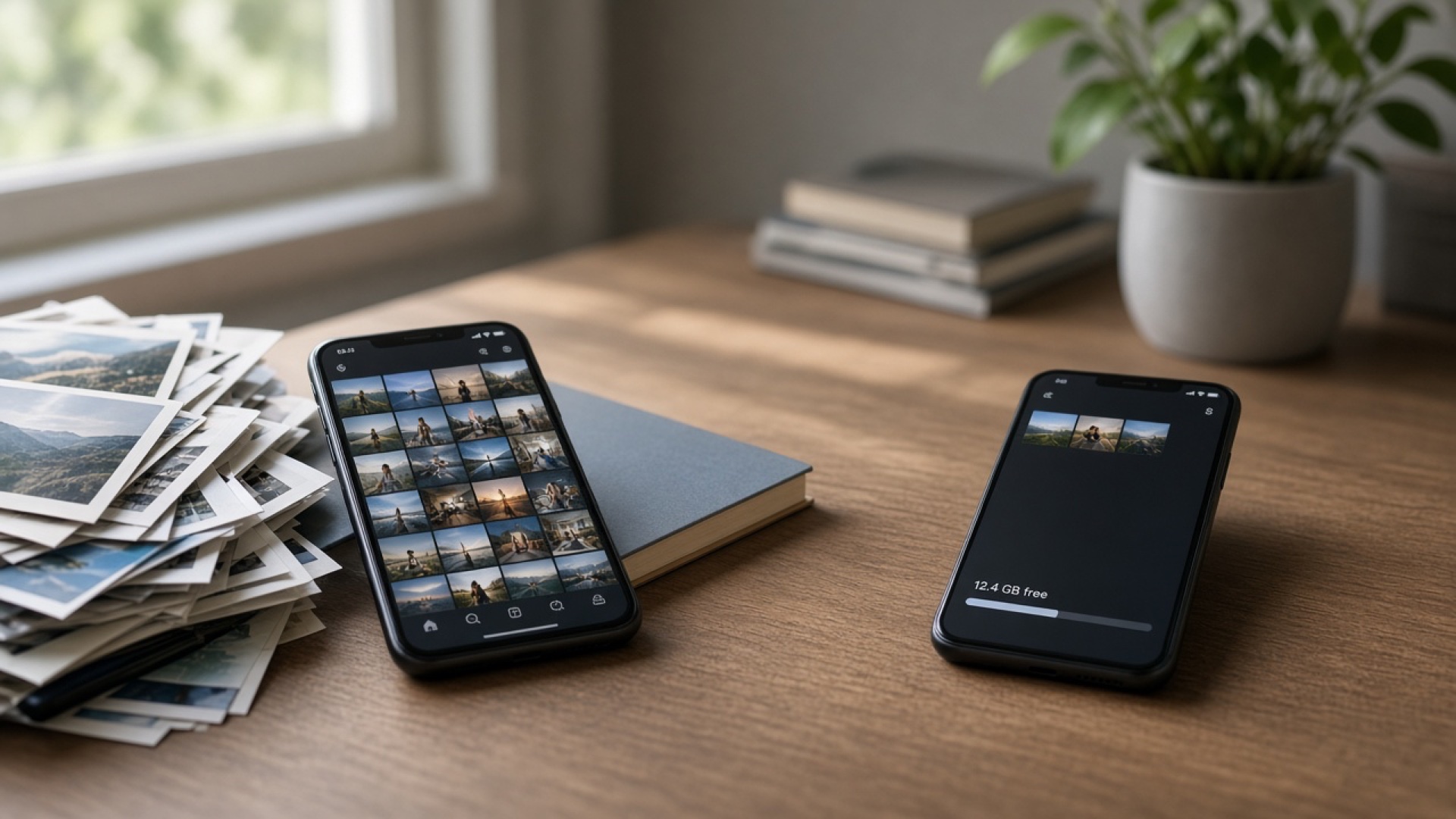
Chat apps are useful until the phone starts warning that storage is almost full. For a lot of people, the quiet culprit is not apps or operating system files. It is photos, videos, voice notes, and documents that arrived inside WhatsApp or iMessage and then never left the device.
This guide walks through how to see what is taking space, how to clear chat media safely on Android and iPhone, and how to stop the same pile building up again. You do not need a new phone. You need a clear order of steps.
Why chat media fills a phone so fast
A single chat can feel small. A hundred chats do not. Group threads, family albums, work status videos, and “quick” screen recordings add up over months. WhatsApp and iMessage both keep media so you can reopen a conversation later. That is helpful until the Photos app, the chat app, and “Recently Deleted” each hold a copy of the same clip.
Videos are the heaviest files. A short HD clip can use more space than dozens of still photos.
Forwarded memes and status videos often get saved automatically even when you never asked to keep them.
Voice notes and PDFs look tiny one by one, but months of them still count.
Cloud backup is separate from free space on the phone. Backing up does not always free the device.
If the phone feels slow only when storage is low, free the media first. Do not jump straight to deleting apps you still use.
Step 1: Confirm chat media is the real problem
Before you wipe chats, check the storage screen. Guessing leads to deleting the wrong things.
On iPhone
Open Settings → General → iPhone Storage.
Wait for the list to finish loading. Look for WhatsApp, Messages, and Photos near the top.
Tap each one. Note how much of the total is Documents & Data versus the app itself.
If Messages or WhatsApp is large, chat media is likely the issue. If Photos is huge, many chat images may already have been saved to the Camera Roll as well.
On Android
Open Settings → Storage (wording varies by brand).
Open Apps or Files and look at WhatsApp, Messages, Downloads, and Photos / Gallery.
Inside WhatsApp’s app info, open Storage & cache if that option is there.
Write down the biggest numbers. You are aiming at media folders, not at wiping every app setting.
Step 2: Clear WhatsApp media without losing every chat
WhatsApp lets you manage storage inside the app. That is safer than deleting the whole app when you only need space.
Open WhatsApp → Settings → Storage and data → Manage storage.
Sort or filter by largest chats and by media type when the option is available.
Start with old groups and broadcast-style chats you do not reopen.
Delete videos first, then photos, then documents. Keep voice notes only if you still need them.
Decide whether you want to clear media from a chat while keeping the text history. WhatsApp’s manage tools are built for that distinction.
After a large cleanup, force-close WhatsApp once and reopen it. Then check phone storage again. The free space number can take a minute to update.
If you also see a WhatsApp Media folder in Files or Gallery, review it. Some devices show forwarded videos there even after you cleaned a chat. Delete only what you recognize as chat leftovers.
Step 3: Clear iMessage and Messages attachments on iPhone
iMessage stores photos and videos with the conversation. Apple also offers a review screen for large attachments.
Open Settings → General → iPhone Storage → Messages.
Open Review Large Attachments if it appears. Sort by size and remove old videos you do not need.
In Settings → Messages, turn on Keep Messages for 1 Year or 30 Days if you do not need forever history on this phone.
For a single heavy thread, open the chat → contact or group name → See All Photos / Documents, then delete what you can lose.
Also empty Recently Deleted in Photos. Media removed from a chat can still sit there for about 30 days and keep using space.
Step 4: Decide what to keep before you delete
Not every file in a chat is junk. Spend five minutes sorting “keep forever” from “already seen.”
Keep: IDs, tickets, warranties, invoices, school or work PDFs, photos that exist only in that chat.
Export or save keepers to Files, Drive, or Photos before you clear the chat media.
Delete: memes, repeated group videos, status forwards, blurry screenshots, and clips you already watched.
If two people share a device story, agree who archives family videos so one person does not wipe the only copy.
Step 5: Stop the phone from filling again
Cleanup without a habit is a monthly panic. A few settings do most of the work.
WhatsApp settings that help
In Storage and data, lower media auto-download on cellular. Prefer Wi‑Fi only for videos, or manual download.
Turn off automatic saving of chat photos to the device gallery if you do not want a second copy of every image.
Leave large groups muted and avoid opening every video full screen when a preview is enough.
Every month, open Manage storage and clear anything older than a few months in busy groups.
iMessage and Photos settings that help
Limit how long Messages keeps conversations if you do not need infinite history on the phone.
In Photos, review duplicates and screenshots. Chat screenshots are a hidden space sink.
When someone sends a huge video, save it once to a cloud folder if you need it, then delete the chat copy.
Offload unused apps only after media cleanup. Offloading rarely fixes a phone that is full of videos.
What if storage is still low?
If WhatsApp and Messages are already small and the phone is still full, look next at Downloads, cached browser data, streaming app downloads, and old podcasts or offline maps. Restart the phone after big deletes so the system recounts free space. If a chat app still reports a large size after you cleared media, check for an incomplete delete, a second WhatsApp account profile, or media sitting in “Recently Deleted.”
A factory reset should be the last option, not the first. Most people get enough space back by removing old chat videos and emptying trash folders.
A simple monthly routine
Open the phone storage screen and note the top three apps.
Clear WhatsApp Manage storage for the heaviest chats.
Clear large Messages attachments on iPhone, or old MMS / RCS media on Android Messages if that app is large.
Empty Recently Deleted / Trash in Photos and Files.
Confirm free space went up before you install anything new.
Ten minutes once a month is quieter than an evening of emergency deleting when the camera will not open.
Quick answers
Does deleting a WhatsApp chat free space immediately?
Usually yes for the media inside that chat, after the app finishes cleanup. Check the system storage screen a minute later. If a trash or “recently deleted” folder exists, empty that too.
Will clearing media delete my message text?
Not if you use the in-app tools that remove media only. Deleting the entire chat removes the conversation. Read the confirmation text before you tap delete.
Is iCloud or Google backup enough?
Backup protects a copy. It does not always shrink what is on the phone. Freeing device storage still means removing or offloading local files.
Should I uninstall WhatsApp to free space?
Only if you already exported anything you need and you accept reinstalling and restoring. Managing storage inside the app is the cleaner first move.
Chat media fills phones because it arrives quietly and stays forever by default. Check storage, clear the largest videos first, keep the few files that matter, and turn down auto-download so the next month does not look the same.
Maverick Codebase is a product studio. We design and ship native iOS and Android apps, mobile games, Laravel business systems, and the brands that hold them together.


Comments(00)
No comments yet. Be the first to join the conversation.